1
Register Your School
Contact the CBC Mate System Administrator to get started

Your school does not self-register. The CBC Mate System Administrator creates your school account and provides your login credentials.

Before you can log in, your school must be registered in the system. Contact us with your school's details.

Information to provide when registering:

  • Full school name and physical address
  • School type (Primary, Secondary, Combined, etc.)
  • District and region
  • School phone number and email
  • Ministry of Education registration / license number
  • Name and contact of the designated school administrator (person who will manage the system)
  • School logo (PNG with transparent background, optional)

What you will receive:

School Login ID
e.g. SCH-00042
Used by all staff at your school to identify your school during login
Admin Login ID
e.g. USR-10199
Your personal Login ID + a temporary password to change on first login
2
First Login
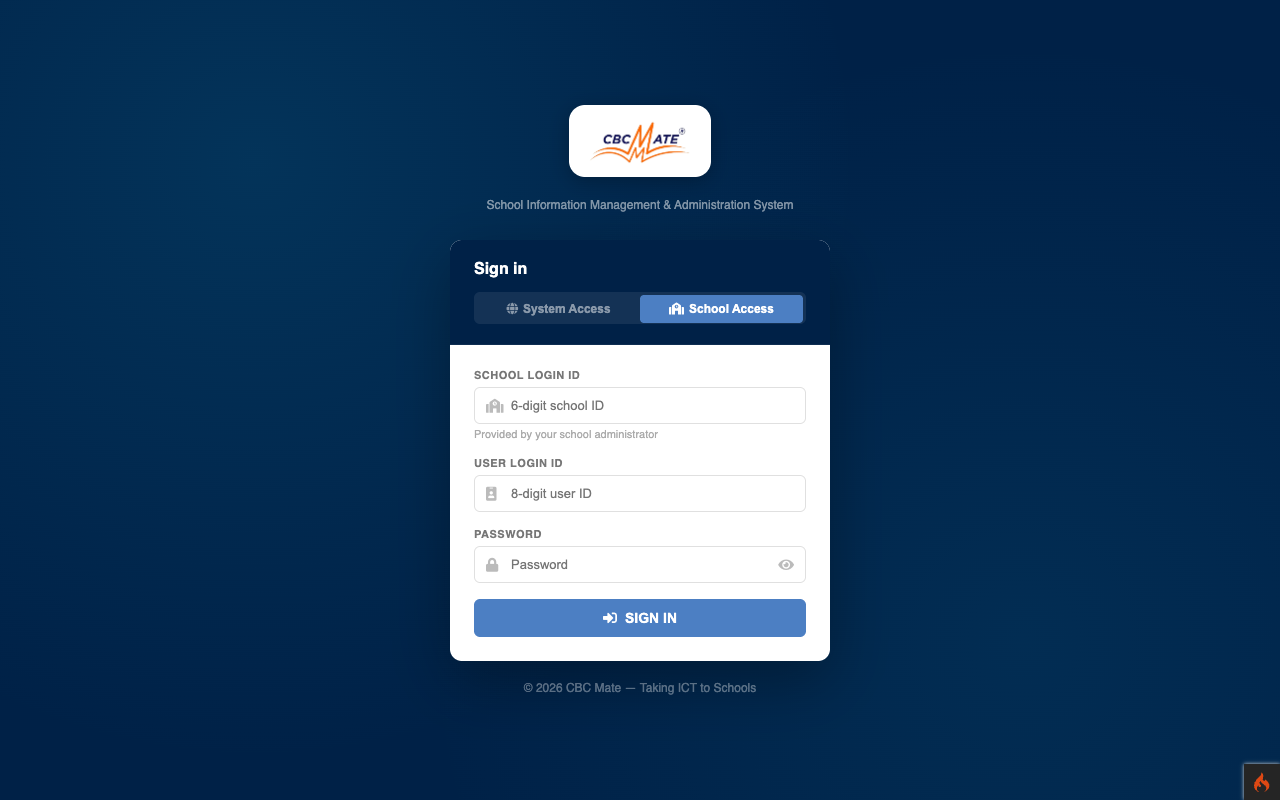
Sign in using your School Login ID and personal credentials
  1. Open your browser and go to cbcmate.com
  2. On the login page, click the School Login tab
  3. Enter your School Login ID (e.g. SCH-00042)
  4. Enter your personal Login ID (e.g. USR-10199)
  5. Enter the temporary password provided by the system administrator
  6. Click Login — you will be prompted to set a new password immediately
SCREENSHOT — LOGIN PAGE
CBC Mate login page
On first login you are required to change your password. Choose a strong password — at least 8 characters with a mix of letters and numbers.
SCREENSHOT — ADMIN DASHBOARD
Admin dashboard after first login
3
Initial School Setup
Complete the setup checklist before using the system

After your first login you will see a Setup Checklist on the dashboard. This guides you through configuring your school before day-to-day use.

SCREENSHOT — SETUP CHECKLIST
Setup checklist

Recommended setup order:

  • School Profile — update name, logo, contact info, and choose your school's theme colours
  • Academic Year & Term — set the current year and term
  • Grading System & Grade Scale — choose a grading system (e.g. UNEB A–E, D1–F9, Primary, Tertiary) and adjust the grade boundaries/remarks
  • Classes / Streams — create all classes (e.g. S.1A, S.1B, P.3, P.4)
  • Departments — add teaching departments (Sciences, Humanities, Languages…)
  • Subjects — add all subjects taught at your school
  • Staff — add all teachers and non-teaching staff
  • Learners — enrol students into their classes
SCREENSHOT — SCHOOL PROFILE
School Profile settings page
The grading system and grade scale are set during the setup wizard, but can be changed at any time afterwards from Setup → Grading Policy in the sidebar — useful if your school's grade boundaries or remarks change between terms.
4
Add Staff Members
Register teachers and non-teaching staff

Go to Staff → Staff List → Add Staff. Each staff member gets their own Login ID to access the system based on their role.

  • Fill in name, phone, email, subject, and department
  • Assign a role: Teacher, DOS, Deputy Headmaster, Bursar, or Librarian
  • Set a temporary password — staff will change it on first login
  • Use Import CSV to bulk-upload many staff at once
SCREENSHOT — ADD STAFF
Add Staff form
Use the Download Template button on the Staff page to get a CSV template pre-filled with your school's departments and subjects, then fill it in and import.
5
Classes & Subjects
Create your school's class structure and subject list

Classes go to Academics → Classes. Create each stream (e.g. S.1A, P.3B). Set the level/grade and stream label consistently.

Subjects go to Academics → Subjects. Assign each subject to a department and class level.

Use a consistent naming format for classes — e.g. S.1A not S 1 A or Senior One A. This prevents duplicates and ensures reports group correctly.
SCREENSHOT — CLASSES PAGE
Classes list page
SCREENSHOT — SUBJECTS PAGE
Subjects list page
6
Enrol Learners
Add students to the system and assign them to classes

Go to Learners → Learners List → Add Learner. You can also bulk-import using a CSV template.

  • Enter full name, date of birth, gender
  • Assign to a class/stream
  • Enter admission number and year of admission
  • Add parent/guardian contact (optional)
  • Use Import CSV for bulk enrolment (download template first)
SCREENSHOT — ENROL LEARNER
Add Learner form
SCREENSHOT — IMPORT LEARNERS CSV
Import learners CSV panel
7
Results & Marks
Enter exam marks and generate report cards

Go to Results → Enter Marks. Select the exam, class, and subject, then enter each learner's mark.

  1. Create an exam (e.g. End of Term 1 2026) under Results → Exams
  2. Teachers enter marks for their subjects via Results → Enter Marks
  3. View the marksheet and performance summaries under Results → Marksheet
  4. Generate and print individual Report Cards from the Report Cards section
SCREENSHOT — ENTER MARKS
Results marks entry grid
SCREENSHOT — REPORT CARD
Learner report card / marksheet
Report cards use a default layout that matches your school's grading policy (e.g. UACE points for A-Level, marks & division for O-Level/Primary, grade-only for Tertiary/University). To use your own design for a class level, go to Setup → Report Card Templates, download the template for that level, edit it, and upload it back. A level with no custom template falls back to the school-wide "All other levels" template, then to the system default. If you'd rather not edit the layout yourself, contact our support team and we'll set it up for your school.
8
Attendance
Track daily learner and staff attendance

Go to Attendance in the sidebar. Select a class and date, then mark each learner present, absent, or late.

SCREENSHOT — ATTENDANCE SHEET
Daily attendance sheet
Attendance reports and summaries per learner and class are available under Reports → Attendance.
9
Fees Management
Track fee payments and generate receipts

Go to Fees in the sidebar. Set up fee structures per class, record payments per learner, and track outstanding balances.

SCREENSHOT — FEES
Fees management dashboard
10
Reports
Generate and export school reports

Reports are available for Learners, Staff, Results, Attendance, and Fees. Use the Export buttons to download data as CSV or PDF.

SCREENSHOT — REPORTS DASHBOARD
Reports section overview
User Roles & Access
Different staff have different levels of access
School Admin
Full access — manages all school data, users, settings, and reports.
Principal / HM
Views school-wide data, reports, and approvals. Cannot manage system settings.
DOS / Deputy HM
Manages academics, staff, results, timetable, and learner records.
Teacher
Enters marks for assigned subjects, views their classes, takes attendance.
Bursar
Manages fees — records payments, views balances, generates fee reports.
Librarian
Manages library records, book inventory, and borrowing logs.

Need More Help?

Reach our support and sales team or send us a message.

Contact Us Go to Login